 IndieBase

Table of Contents
Installing the App
How to install the IndieBase app on your phone, tablet, or computer for the best experience — including offline access.
Installing the App
Install IndieBase on your device for a full app experience — including the ability to work completely offline on scene.
Overview
IndieBase runs as a Progressive Web App (PWA). This means it's a web application that can be installed directly on your device from your browser — no app store required. Once installed, it behaves like a native app: it gets its own home screen icon, opens in its own window, and — crucially for pre-hospital work — continues to function when you have no signal.
Installing the app is optional. IndieBase works perfectly well in a browser tab, but installing it gives you a better experience: faster loading, offline access, push notifications, and no browser chrome getting in the way while you're working on scene.
Before You Start
- You'll need access to your team's IndieBase URL (your team admin can provide this).
- Use the recommended browser for your platform — listed below for each operating system.
- You only need to install once per device. After that, the app updates itself automatically in the background.
iOS and iPadOS users: Safari is the only browser that supports installing PWAs on Apple's mobile devices. Chrome and Firefox on iOS won't give you the install option.
Android
Recommended browser: Chrome (or Samsung Internet on Samsung devices)
Installing via Chrome
-
Open Chrome and navigate to your team's IndieBase URL.
-
Sign in if prompted.
-
Tap the three-dot menu in the top-right corner of Chrome.
-
Tap Add to Home screen (or Install app, depending on your Chrome version).
-
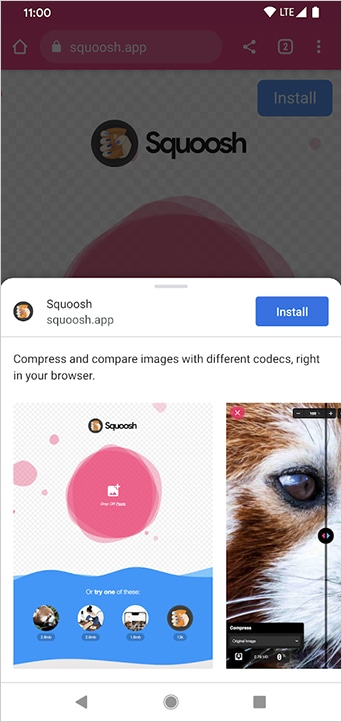
A prompt appears showing the app name, icon, and description. Tap Install.
-
The IndieBase icon appears on your home screen. Tap it to launch.
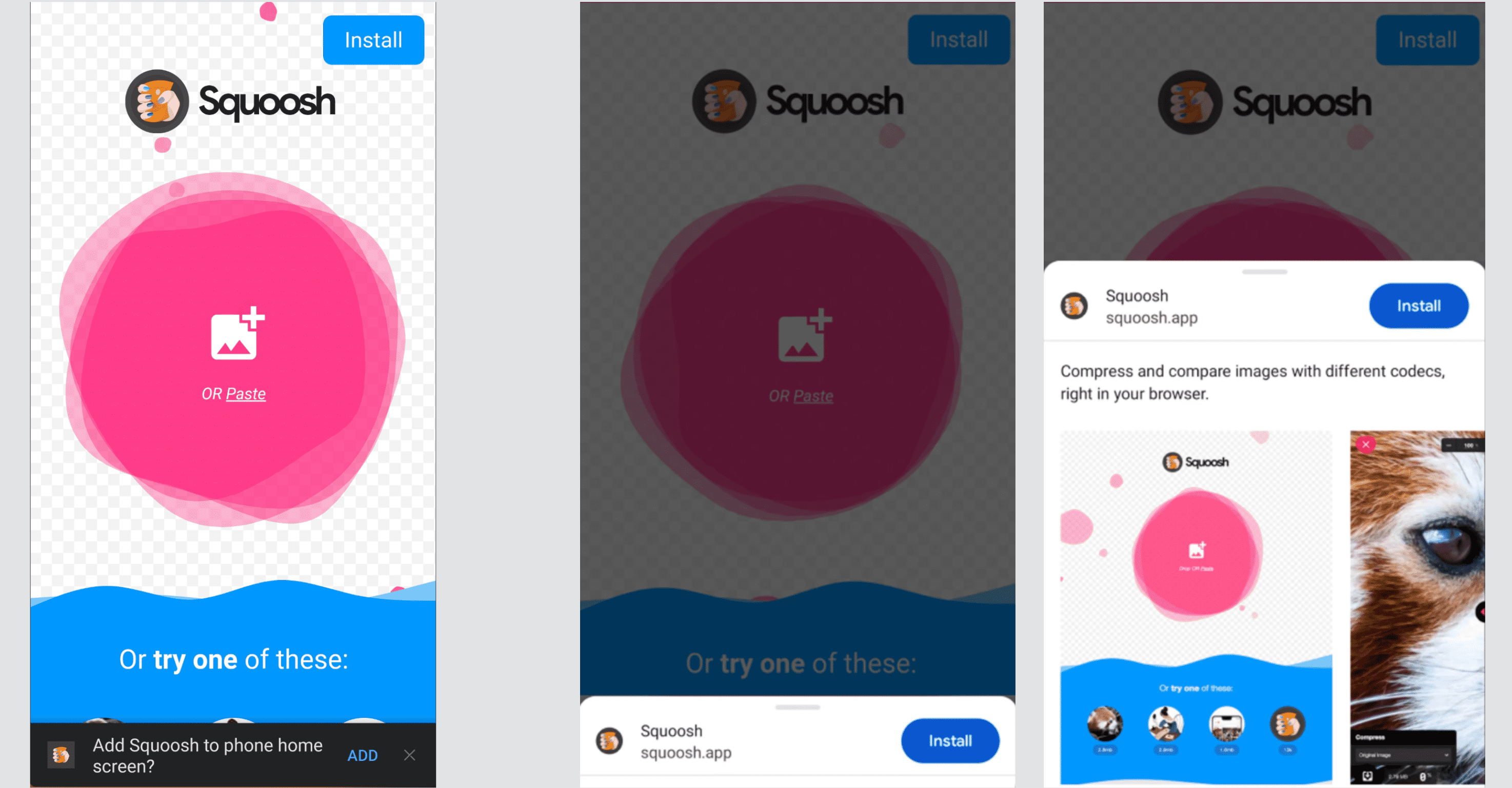
On some Android versions you'll see an install banner at the bottom of the screen automatically — you can tap that instead of using the menu.
Installing via Samsung Internet
- Open Samsung Internet and navigate to your team's IndieBase URL.
- Tap the menu icon (three horizontal lines) at the bottom of the screen.
- Tap Add page to, then tap Home screen.
- Confirm by tapping Add.
Installing via Firefox on Android
- Open Firefox and navigate to your team's IndieBase URL.
- Tap the three-dot menu in the top-right corner.
- Tap Install.
- Tap Add on the confirmation prompt.
iOS and iPadOS
Required browser: Safari (Chrome and Firefox on iOS cannot install PWAs)
-
Open Safari and navigate to your team's IndieBase URL.
-
Sign in if prompted.
-
Tap the Share button — the box with an upward arrow — at the bottom of the screen (iPhone) or top of the screen (iPad).
-
Scroll down in the share sheet and tap Add to Home Screen.
-
The name field defaults to "IndieBase". You can change this if you like, then tap Add in the top-right corner.
-
The IndieBase icon appears on your home screen. Tap it to launch.
After installing on iOS, always open IndieBase using its home screen icon — not by opening Safari and typing the URL. Opening via the icon gives you the full app experience and keeps your offline data intact.
Windows
Recommended browsers: Chrome or Edge
Installing via Chrome
-
Open Chrome and navigate to your team's IndieBase URL.
-
Sign in if prompted.
-
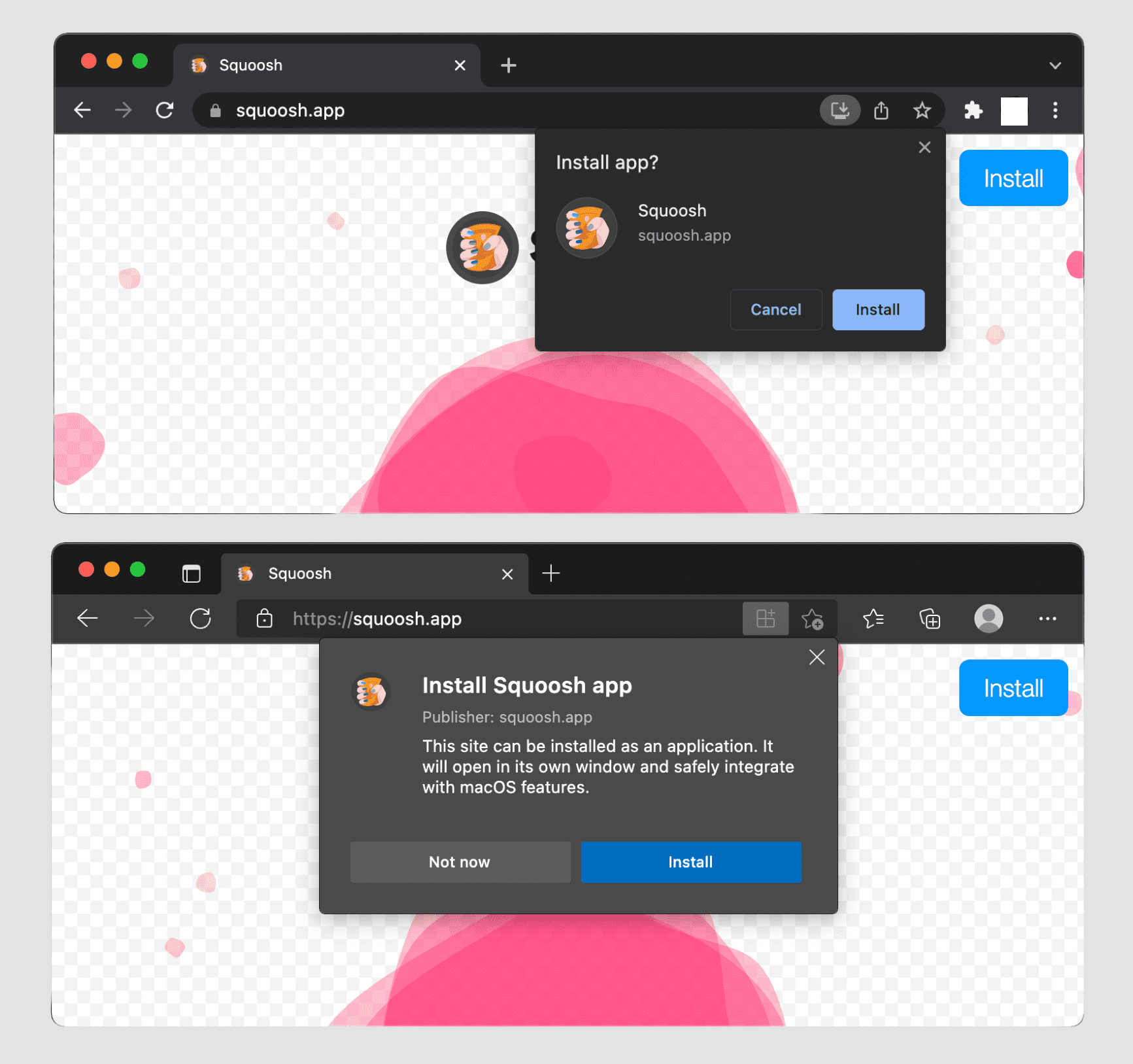
Look for the install icon in the address bar — it looks like a monitor with a downward arrow. Click it.

-
Click Install on the prompt that appears.
-
IndieBase opens in its own window and a shortcut is added to your desktop and Start menu.
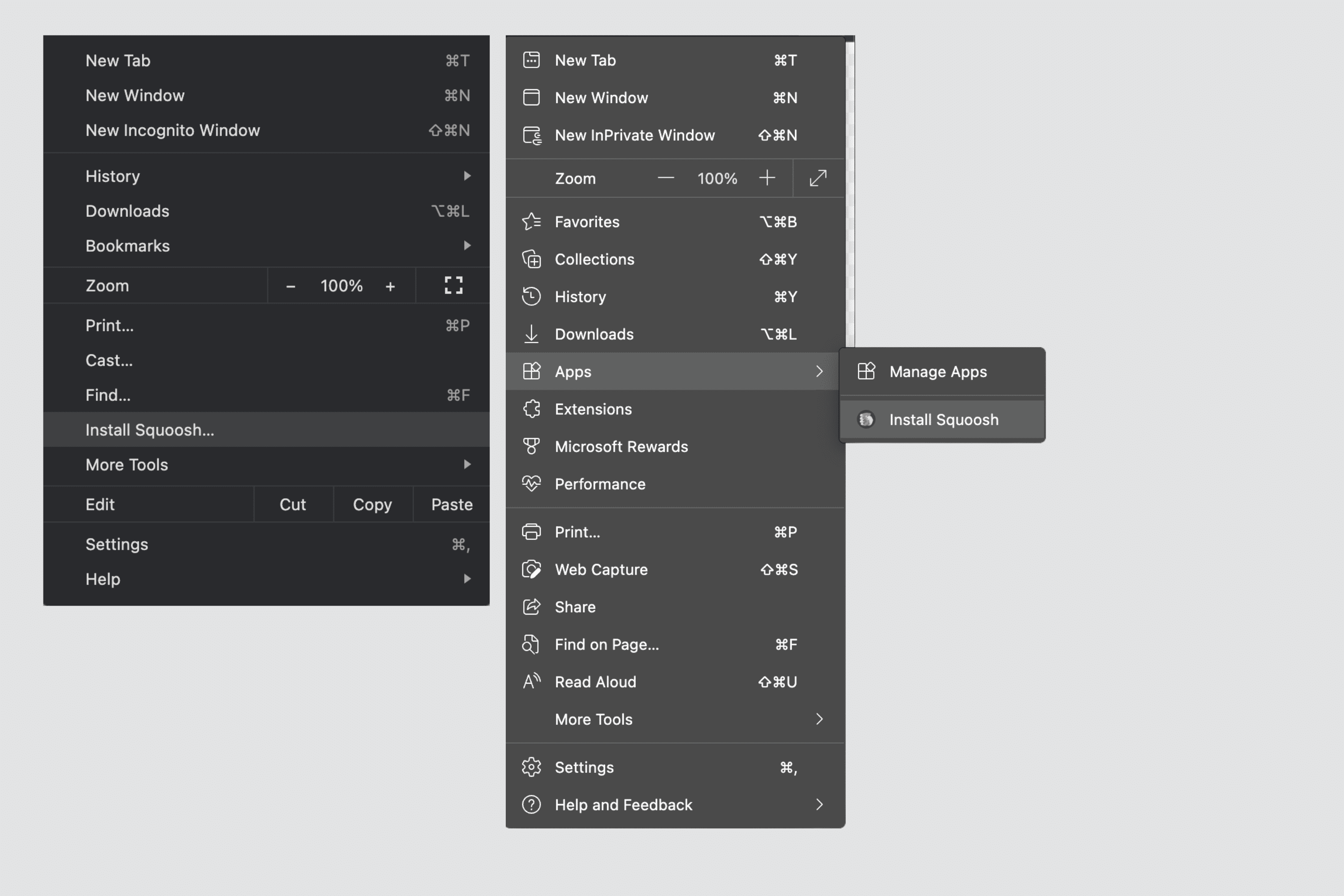
If you don't see the install icon, try the menu instead: click the three-dot menu in the top-right corner, then go to Save and share > Install page as app.
Installing via Edge
-
Open Edge and navigate to your team's IndieBase URL.
-
Sign in if prompted.
-
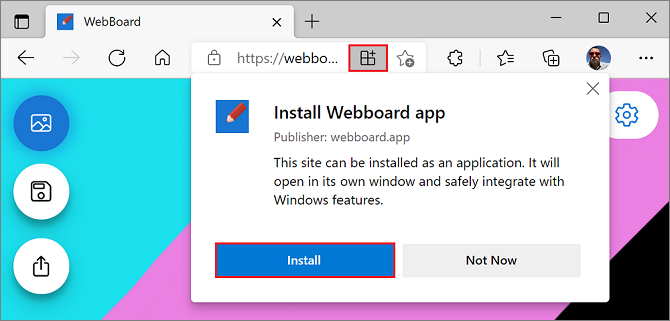
Click the three-dot menu in the top-right corner, then click Apps > Install this site as an app.
-
Click Install on the confirmation prompt.
-
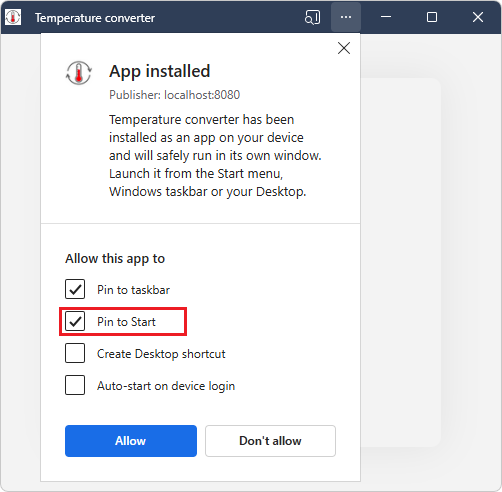
After installation, you can choose to pin the app to the taskbar and Start menu.
-
IndieBase opens in its own window. You'll also find it in the Start menu under Apps.
macOS
Recommended browsers: Chrome, Edge, or Safari (macOS Sonoma 14 or later)
Installing via Chrome
-
Open Chrome and navigate to your team's IndieBase URL.
-
Sign in if prompted.
-
Click the install icon in the address bar (a monitor with a downward arrow), or open the three-dot menu and choose Save and share > Install page as app.
-
Click Install on the prompt.
-
IndieBase opens in its own window and appears in your Applications folder and Dock.
Installing via Edge
The steps are the same as for Windows Edge above. Once installed, IndieBase appears in your Applications folder and can be pinned to the Dock.
Installing via Safari (macOS Sonoma or later)
Support for installing web apps via Safari was introduced in macOS Sonoma (14). If you're on an older version, use Chrome or Edge instead.
-
Open Safari and navigate to your team's IndieBase URL.
-
Sign in if prompted.
-
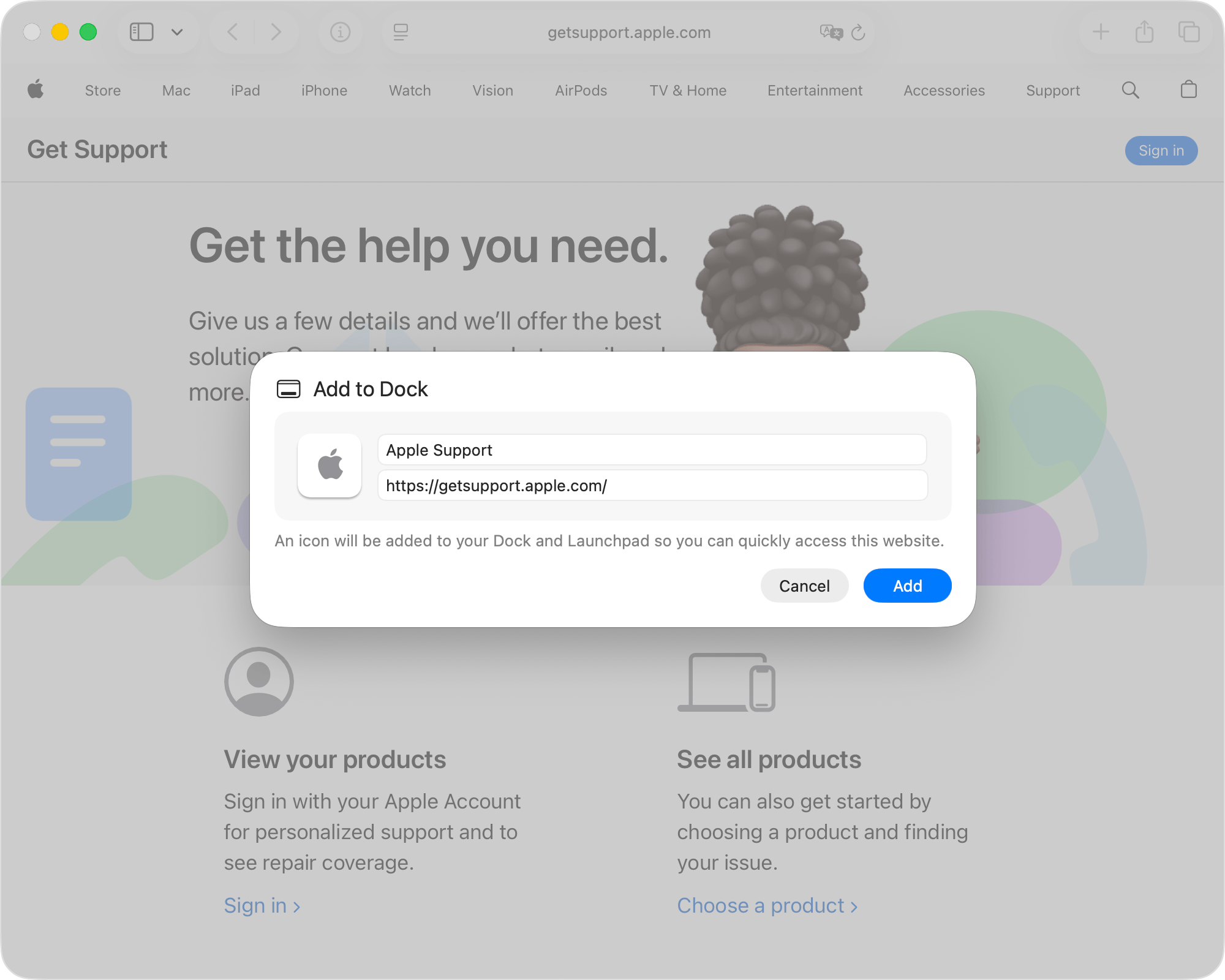
In the menu bar, click File > Add to Dock.
-
A dialog appears showing the app name and URL. Click Add.
-
IndieBase appears in your Dock and opens in its own window when launched.
ChromeOS
Browser: Chrome (built-in)
-
Open Chrome and navigate to your team's IndieBase URL.
-
Sign in if prompted.
-
Click the install icon in the address bar, or open the three-dot menu and go to Save and share > Install page as app.
-
Click Install on the prompt.
-
IndieBase appears in your ChromeOS app launcher.
Linux
Recommended browser: Chrome or Chromium
-
Open Chrome (or Chromium) and navigate to your team's IndieBase URL.
-
Sign in if prompted.
-
Click the install icon in the address bar (monitor with downward arrow), or open the three-dot menu and choose Save and share > Install page as app.
-
Click Install on the prompt.
-
IndieBase opens in its own window and a launcher shortcut is created.
Firefox on Linux does not currently support installing PWAs.
Using the App Offline
Once installed, IndieBase stores a local copy of your jobs, patient records, and configuration. You can use the app in full — recording patient data, adding interventions, completing the PRF — without any network connection.
When your connection is restored, the app syncs your changes to the server automatically. You don't need to do anything — just carry on working and let IndieBase handle it.
For offline access to work properly, you need to open the installed app at least once while online after installation. This allows it to download and cache your team's latest data.
For more detail on how offline sync works, see Signing In to the App — particularly the section on token lifetime.
Tips & Best Practices
- Install on every device you use on shift. Because the app is device-scoped, installing it on your phone and your tablet gives you two independent offline stores.
- Keep your device charged. The app locks after 5 minutes of inactivity — this is a feature, not a bug. A charged battery means you can always unlock and carry on.
- Don't use private/incognito mode. Browsers can't install PWAs or store offline data in private browsing. Always use a normal browser session.
- Let the app update itself. When the app detects a newer version, it downloads it in the background. You'll see a prompt to reload — do this between calls, not on scene.
Troubleshooting
I don't see an install option anywhere.
First, make sure you're using a supported browser for your platform (see the list at the top of each platform section). On iOS, only Safari works. If you're using the right browser, try refreshing the page and waiting 30 seconds — the install prompt can take a moment to appear if the browser is still checking whether the site qualifies as an installable app.
The install icon appeared before but now it's gone.
Once you've installed the app, the browser removes the install icon — it knows the app is already installed. Look for the IndieBase icon on your home screen, desktop, or app launcher.
I installed it but it still needs a connection to work.
Open the installed app once while you have a connection, navigate to your jobs list, and let it fully load. This caches the data you'll need offline. After that, it works without a connection.
The app icon on my home screen just opens the browser.
This usually means you added the page to your bookmarks rather than installing it as a PWA. On iOS, make sure you used the Add to Home Screen option from Safari's share sheet. On Android, look for Add to Home screen (not just bookmarking). Delete the existing shortcut and follow the steps above again.
Push notifications aren't working after I installed it.
When the app is first installed, your browser may ask for permission to send notifications. If you declined, you can re-enable this in your device's notification settings. On Android, go to Settings > Apps > IndieBase > Notifications. On iOS, go to Settings > IndieBase > Notifications.
- Signing In to the App - how authentication works and how long your session lasts
- Setting Up Your Crew - what to do once you're installed and signed in
- Locking the App - how the automatic lock screen protects patient data on your device