 IndieBase

Table of Contents
SGSA Spectator Injury Reporting
Capture the Sports Grounds Safety Authority spectator-injury dataset on each patient record and download it as a CSV after the fixture.
SGSA Spectator Injury Reporting
Capture the Sports Grounds Safety Authority (SGSA) spectator-injury dataset on each patient record during the fixture, check completeness in the control room, and download the CSV — with no transcription from paper.
Overview
Every licensed ground in England and Wales returns spectator injury data to the SGSA twice a season. IndieBase captures that dataset at the point of care instead of after the event:
- Fixture details (fixture type, home team, away team) are set once on the event and repeat on every row.
- Per-patient answers live in an SGSA panel on the patient record, positioned just before Outcome so it can be completed at discharge.
- The SGSA report screen in the control room shows how many records are complete, which ones need attention, and offers a Download CSV button.
SGSA reporting is switched on by your own team, per template, from Team Config. Until a template has the SGSA panel enabled you will not see the panel, the fixture fields on events, or the report screen.
Before You Start
- Enable the SGSA panel on at least one template under Team Config → (template) → SGSA using the panel switch beside the section title. It is off by default. As soon as any template enables it, the fixture fields appear on events and the report grid and download become available.
- To open the SGSA report screen or download the CSV you need the
events:export-sgsateam permission, which team admins hold by default. See Roles. - Set the fixture details when you create the event, or from the event page afterwards. Without them the CSV leaves three columns blank on every row and the report banner flags it.
- Optional: enter your local NHS ambulance service under Team Config → SGSA so the on-site conveyance option in the CSV names the trust exactly as your spreadsheet did.
Setting the fixture on the event
- Create or edit the event as usual — see Setting Up a New Event.
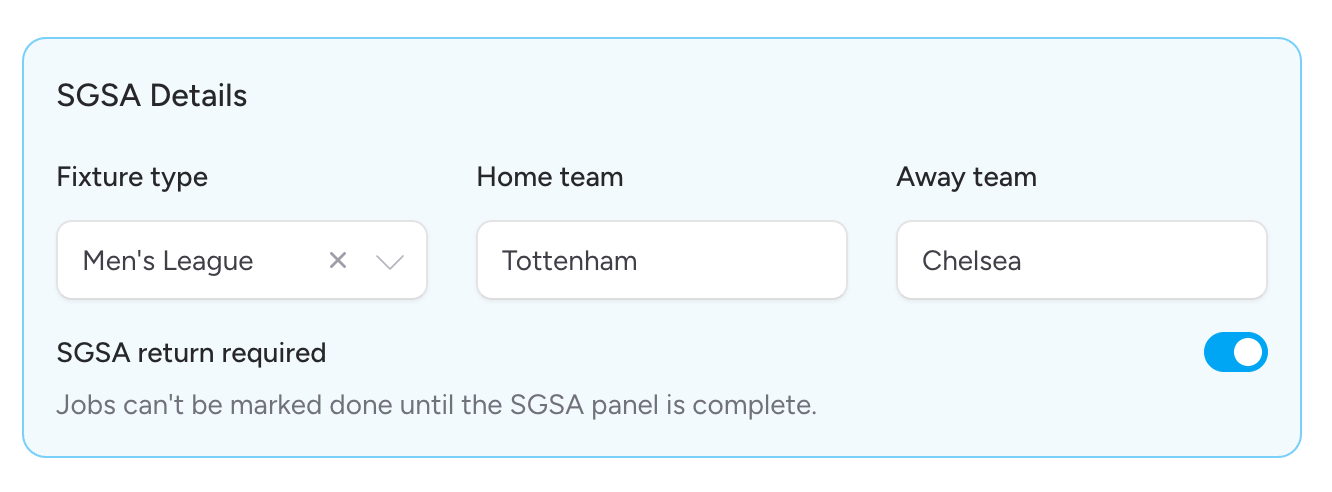
- In the SGSA Details block, choose the fixture type and enter the home and away team names.
- Save. These values appear on every SGSA row for the event.
Completing the SGSA panel on a patient
- Open the patient record and scroll to the SGSA panel, immediately before Outcome.
- Tap Create SGSA record.
- Work down the groups in the order a clinician would recount the episode: Who, What happened, What you found, Where and when, Outcome, and Compliance.
- Fields that still need an answer show an asterisk beside their label, as elsewhere in the record. The panel's badge counts them. Nothing here stops you saving — the marker is a reminder, not a block (unless the return has been made mandatory, see below, and even then only marking the job done is held back).
- Some fields only appear when they apply: an "other" text box after an Other (please specify) choice, Body part only for injury causes, Which hospital only for hospital discharges, and Doctor name only when a doctor saw the patient.
- Use Unknown when you looked and could not establish the answer. Leaving a field blank means nobody has looked yet, and the control room will chase it.
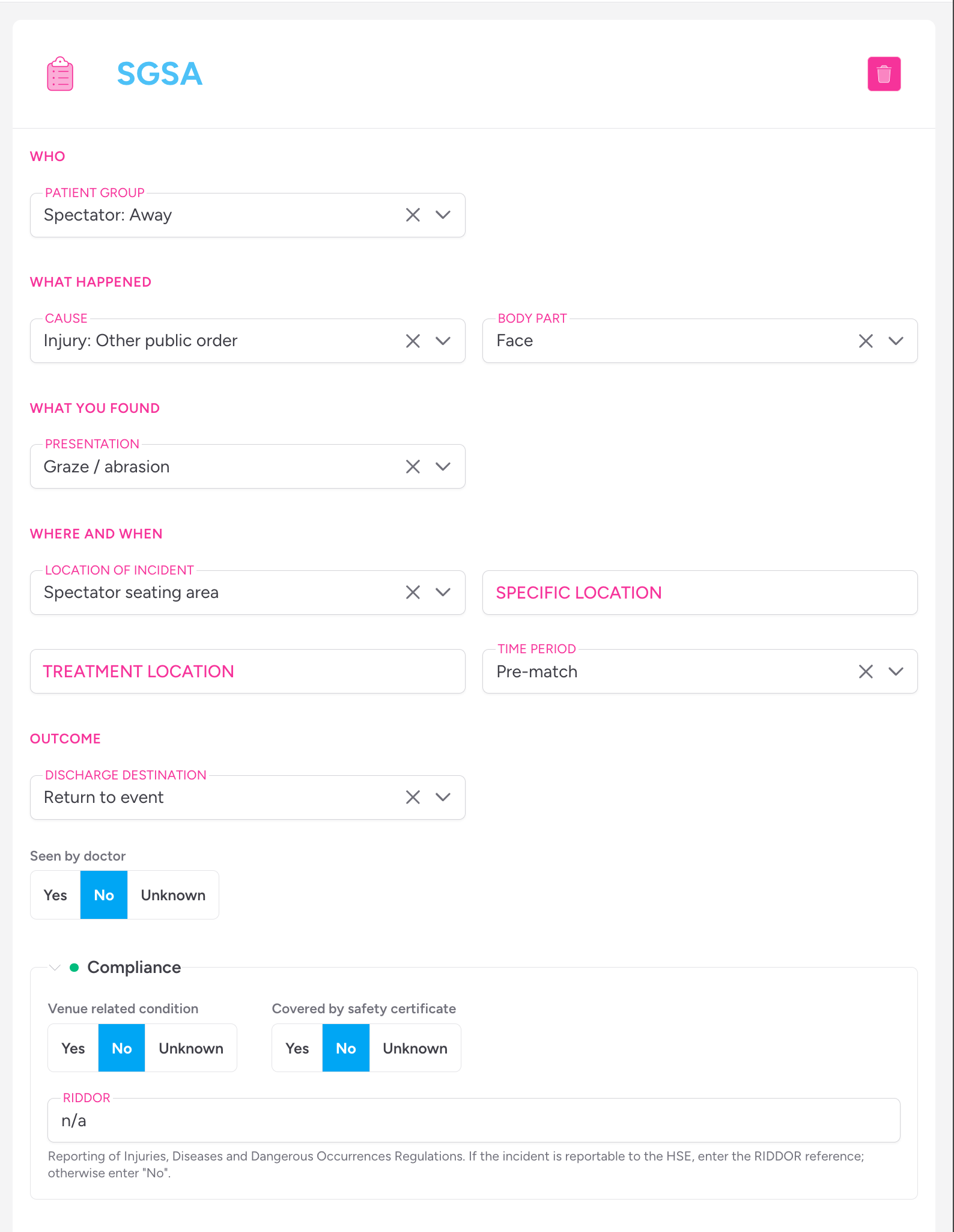
The Compliance group (venue-related condition, safety-certificate coverage, RIDDOR) opens automatically while any of its fields is outstanding and collapses once all three are answered.
Making the SGSA return mandatory
By default the SGSA panel is optional: outstanding fields are flagged but never enforced. Two switches make it mandatory.
- For every job on a template: under Team Config → (template) → SGSA, turn on Require completion. Every job created on that template must have a complete SGSA panel before it can be marked done.
- For one event only: on the event form, in the SGSA Details block, turn on SGSA return required. Jobs on that event must have a complete SGSA panel before they can be marked done, whatever the template says. Use this for a licensed-ground fixture and leave it off for a fun run.
Either switch is enough. When the return is required:
- Saving is never blocked. Crews record what they can and move on.
- When a medic taps Done with SGSA fields outstanding, the job stays open, the SGSA badge in the sidebar turns red, and the record jumps to the panel showing which fields are missing.
- The control room's job close-out applies the same rule, so an operator cannot close the job from the grid either.
- Only fields that apply are counted. An "other" text box, Body part, Which hospital and Doctor name are required only when their parent answer calls for them.
If the SGSA panel is hidden on the job's template but the event requires the return, the panel is shown on that event's jobs anyway.

Checking completeness in the control room
- Open the event's Control Room and click SGSA report, or use the same button on the event page.
- The banner reads, for example, 28 of 34 records complete · 6 need attention, and lists any fixture details missing from the event itself.
- Each row is one patient contact, including patients who have no SGSA record yet. The badge at the end of the row shows how many fields still need an answer.
- Click a row's badge to fix the gaps in place. The modal takes the same edit lock the tablets use, so you will see a notice if a medic is editing that panel at the same time, and it never closes on its own if the lock expires — copy your work out first.
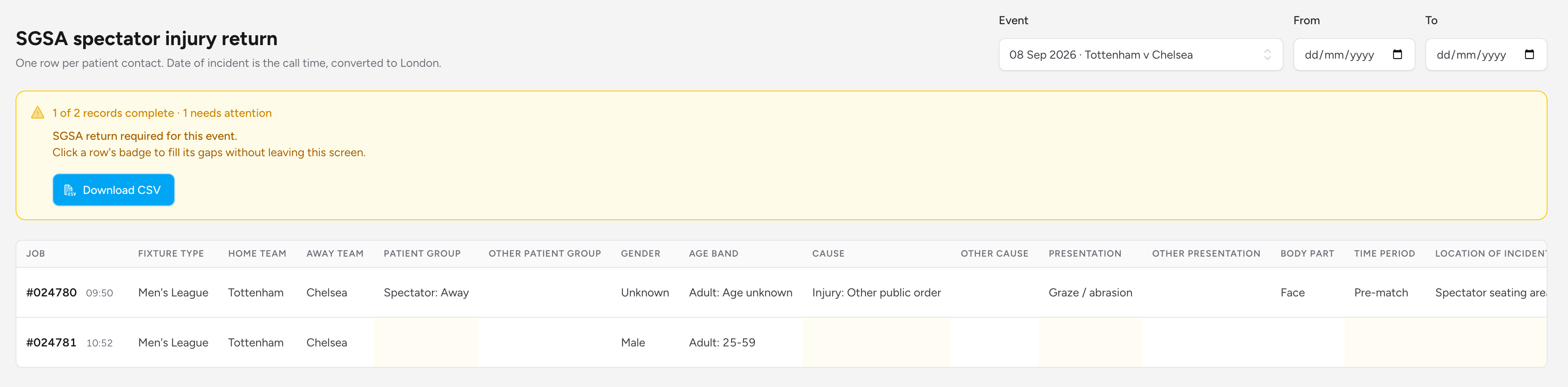
You can also filter the grid by a date range across several events. The completeness banner only appears for a single event; the per-row badges still work.
Downloading the CSV
- On the SGSA report screen, click Download CSV.
- The file carries the current filter (the selected event, or the date range) and is named after it, for example
sgsa-2026-09-12-home-v-away.csv. - The first line is the 23 column headings, followed by one row per patient contact. Two notes follow the last row: the date column is the call time (a proxy for incident time), and how many events were left out if you lack the export permission for some of them.
- Every download is recorded in the team audit log.
The CSV contains no patient names or dates of birth — only the SGSA columns (gender and age band among them). Treat it as sensitive all the same: at single-fixture scale it can still identify people.
Tips & Best Practices
- Complete the panel at discharge. Half its fields (discharge destination, hospital, seen by doctor) are only knowable then, and it sits right before Outcome for that reason.
- Prefer "Unknown" to a blank when you genuinely could not establish something. Blanks are chased; Unknown is an answer.
- Set the fixture before the gates open. It takes ten seconds and removes three blank columns from every row.
- Download after the last patient has synced. Rows from tablets that have not synced yet are simply absent from the file, so download again later if crews were still offline.
Troubleshooting
Q: I cannot see the SGSA panel or the SGSA report button.
A: The panel is enabled per template under Team Config → (template) → SGSA, and is off until a team admin switches it on. Check the template the job uses. If the report button is missing but the panel is there, you lack the events:export-sgsa permission — ask a team admin.
Q: I cannot mark a job as done and the SGSA badge is red. A: The SGSA return is required, either by the job's template (Require completion) or by the event (SGSA return required). Open the SGSA panel, answer every field marked with an asterisk (use Unknown where you could not establish it), then mark the job done.
Q: The panel says "3 outstanding" but I have answered everything I can see. A: Check the Compliance group at the bottom of the panel; it holds three required answers (venue-related condition, safety certificate, RIDDOR). It opens automatically while any of them is blank.
Q: The CSV has fewer rows than the grid. A: The grid and the CSV share the same rules, so this normally means tablets synced between the two. Download again. If the banner mentions excluded events, you lack the export permission for some events in the range.
Q: A hospital name is blank in the CSV even though we conveyed the patient. A: The hospital column only fills for hospital discharge destinations, and reads the hospital chosen on the patient's Outcome panel. Set the discharge destination to one of the hospital options and pick the hospital.