 IndieBase

Table of Contents
Completing and Handing Over a Job
How to record the patient outcome, mark a job as done, and hand over to hospital or another service
Completing and Handing Over a Job
How to close out a job — whether your patient went to hospital, was handed over to another service, or was discharged at scene.
Overview
Every job in IndieBase follows a lifecycle from dispatch through to completion. Before marking a job as done, you'll typically need to record the patient outcome in the Outcome panel: where the patient went, when you left the scene, and (if applicable) the handover details.
IndieBase syncs your changes to the server automatically in the background. Once a job is marked as done and all changes have been synced, the job is automatically removed from your device's local storage after a period of inactivity. You can also pin a job to keep it available locally if you need continued access.
Before You Start
- If your patient was treated and released, discharged, or taken to hospital, you should complete the Outcome panel before marking the job done.
- Some fields in the Outcome panel may be required by your team's configuration — the app will tell you if anything is missing when you tap Job Done.
- Multiple crew members can work on the same job simultaneously. If someone else is editing a panel, you'll see their avatar on the panel button in the sidebar — you can still open and edit the panel if needed.
Part 1: Recording the Patient Outcome
Step 1: Open the Outcome Panel
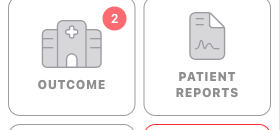
With the job open for editing, find the Outcome panel in the left-hand navigation sidebar. It's identified by the hospital icon. Tap it to open the panel.
If the Outcome panel doesn't appear in the sidebar, your team's configuration may have it hidden. Check with your clinical lead or team admin.
Step 2: Review the ATMIST Handover (optional)
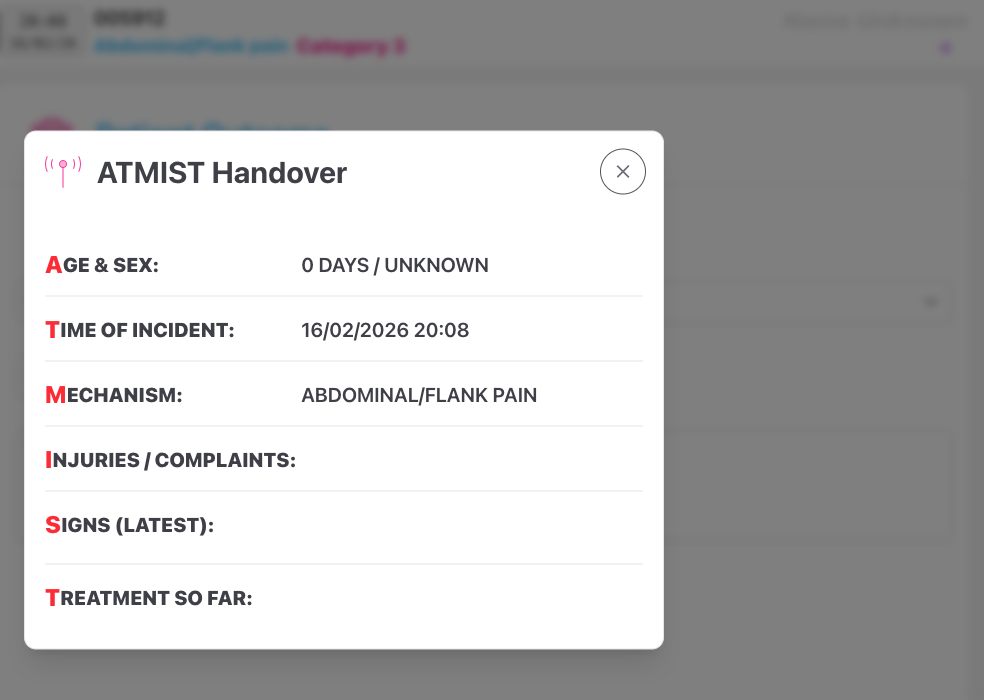
At the top of the Patient Outcome panel, there's an ATMIST button. Tapping this opens a formatted ATMIST handover summary — Age & Sex, Time of incident, Mechanism, Injuries/Complaints, Signs (latest obs), and Treatment so far — pulled automatically from the data you've already recorded.
Use this before handover to make sure you've got your verbal handover details straight.
Step 3: Select the Patient Result
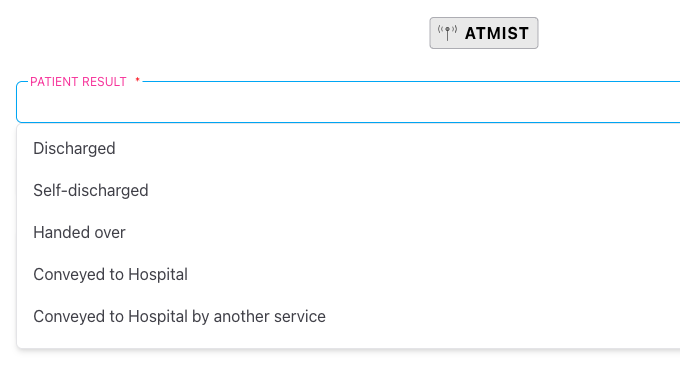
The Patient Result field is a dropdown that determines what additional fields appear in the panel. Select the option that best describes the outcome for your patient.
The standard options are:
- Discharged — patient treated and discharged at scene by your crew
- Self-discharged — patient declined further care and left of their own accord
- Handed over — patient handed over to another service (e.g. ambulance service, other clinical team) without going to hospital
- Conveyed to Hospital — your crew conveyed the patient to hospital
- Conveyed to Hospital by another service — patient went to hospital via a different service (e.g. NHS ambulance)
- Deceased — patient was confirmed deceased
Your team may have additional custom options configured, or a Patient Sub Result field for more granular recording. These are set by your team admin.
Step 4: Complete the Additional Fields
The fields that appear next depend on your Patient Result selection:
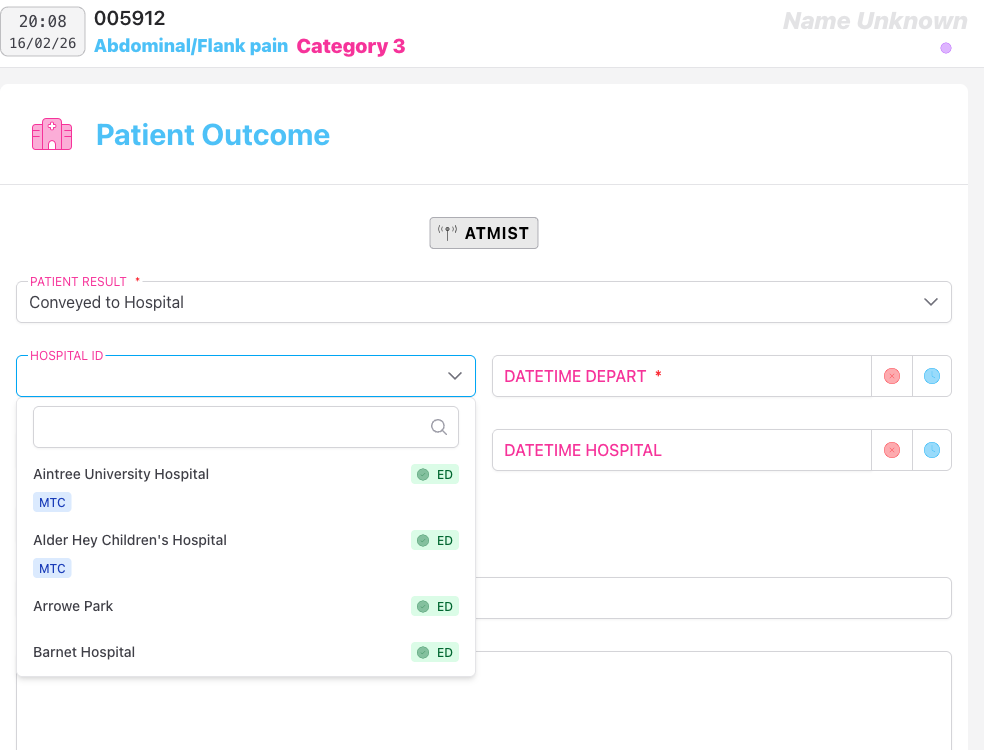
If you selected any outcome involving hospital (Conveyed to Hospital or Conveyed to Hospital by another service):
- Hospital — select the destination hospital from the dropdown. Each hospital in the list shows whether it has an Emergency Department (ED) and which specialist services it covers (MTC, Neuro, Cardio, Vascular, MaxFax, ENT, Burns, PPCI, Stroke). This helps you choose the most appropriate receiving unit.
- Leave Scene Time — the time you left the scene with the patient
- Pre-Alert Time — the time you pre-alerted the hospital
- Hospital Arrival Time — the time you arrived at the receiving hospital
- Handover Time — the time you handed over to hospital staff
- Handover To — the name or role of the person you handed over to
- Notes — any additional handover notes
If you selected Handed over:
- Leave Scene Time — the time you left scene
- Handover Time — the time of handover
- Handover To — who you handed over to
- Notes — any additional notes
If you selected Discharged or Self-discharged:
- Leave Scene Time — the time you cleared scene
If you selected Deceased:
- PLE/ROLE Time — time of Presumption of Life Extinct / Recognition of Life Extinct. Tap the clock icon to stamp the current time, or use the clear button to remove a time you've set by mistake.
- PLE/ROLE By — the name of the clinician who confirmed death
- An option to Create ROLE Form — see below.
Time fields use 24-hour format. Tap the clock icon to stamp the current time instantly, or type directly into the field. Tap the red X to clear a time if you've set it in error.

Step 5: Complete the ROLE Form (Deceased patients only)
If your patient is recorded as Deceased, you can tap Create Role Form to add a Recognition of Life Extinct (ROLE) form to the record.
The ROLE form follows the clinical criteria structure and includes three sections — you complete the section that applies:
-
Condition unequivocally associated with death — select one from: Massive cranial or cerebral injury, Hemicorporectomy, Massive truncal injury, Decomposition or putrefaction, Incineration, Hypostasis, Rigor mortis.
-
Patient pulseless and apnoeic — tick one or more of: DNAR or Validated Advanced Directive, Expected death due to terminal illness, Asystole with no CPR in past 15 minutes and no signs of drowning/hypothermia/poisoning/pregnancy, Asystole AND prolonged submersion (>1.5 hours).
-
Following 20 minutes of Advanced Life Support (ALS) — tick to confirm all criteria are met: no palpable pulses, no heart sounds, no respiratory sounds, pupils fixed and dilated, asystole on ECG for 30 seconds.
To delete the ROLE form, tap the trash icon in the top-right corner of the ROLE form section and confirm when prompted.

Part 2: Marking the Job Done
Once you've completed the Outcome panel (and any other required panels), you're ready to close the job on your device.
Step 6: Tap Job Done
In the top-left of the sidebar, tap the Job Done button (orange, with a tick icon).
The app will validate all required fields across every panel before proceeding. If anything mandatory is missing, it will take you to the relevant panel and highlight the fields that need attention.
If validation passes, the job is marked as done, done_at is recorded, and you're taken back to the home screen. The job switches to a read-only view.
If you realise you've marked a job done in error, you can re-open it from the job view screen — tap Re-open from the status banner at the top of the page (if you have permission to do so).
Part 3: Automatic Sync and Local Storage
IndieBase syncs your changes to the server automatically in the background — there is no manual "check-in" step required.
How sync works
As you edit a job, your changes are saved locally and queued for sync. When you have an internet connection, changes are sent to the server automatically. You can see the sync status on the job card in the jobs list.
When is the job removed from my device?
Once a job is marked as done and all changes have been synced, the job is automatically removed from your device's local storage after 30 minutes of inactivity. This keeps your device storage clean without requiring manual action.
If you need to keep a completed job available locally for longer — for example, to reference it during a debrief — you can pin the job from the job card menu. Pinned jobs remain in local storage until you unpin them.

What happens to the data?
Once synced:
- All recorded data is available on the server for supervisors, admin users, and anyone with access to the team's job records
- The patient outcome and all clinical data are available for reporting
- Other crew members can view and (if the job is still open) continue editing the job from their own devices
Tips & Best Practices
- Complete the Outcome panel before tapping Job Done. The outcome fields are what drive the job's status in the system — jobs without a recorded patient result may not appear correctly in reports.
- Use the ATMIST button before verbal handover. It gives you a clean summary of the key clinical information without you having to scroll through the record.
- Stamp times as they happen. The clock icon in each time field stamps the current time instantly. If you're recording retrospectively, type the time directly rather than using the stamp, so the record is accurate.
- Your changes sync automatically. As long as you have a connection, your data is sent to the server in the background. There's no need to manually sync or check in — just mark the job as done and move on.
- If you're offline, everything you enter is stored locally. Once you're back in range, the sync happens automatically in the background.
Troubleshooting
The Outcome panel isn't visible in the sidebar. Your team configuration may have the outcome panel hidden. Check with your team admin or clinical lead.
The Job Done button won't complete — it keeps taking me back to a panel. One or more required fields are incomplete. The app will navigate you to the panel with missing information and highlight the relevant fields in red. Fill them in and try again.
My changes don't seem to be syncing. Check your internet connection. Changes made offline are stored locally and sync automatically once connectivity is restored. If you're online and changes still aren't syncing, try refreshing the app.
I need to edit the job after marking it done.
Tap Re-open from the status banner at the top of the job view page. This removes the done_at timestamp and allows you to edit again. You'll need appropriate permissions — if the button isn't visible, speak to your team admin.
I selected the wrong patient result. You can go back to the Outcome panel and change the selection at any time before the job is locked by your team admin. The additional fields (hospital, handover times, etc.) will update automatically based on your new selection.
Another crew member is editing the same panel. IndieBase supports concurrent editing. You'll see an avatar badge on the panel button showing who else is working there. You can still open and edit the panel — if you both change the same field, the app will detect the conflict and prompt you to choose which version to keep.
- Adding a Job — creating a job and setting up crew times from the start
- Filling In the Patient Record — recording patient details, observations, and outcome
- Marking a Job as Done — the validation step that closes the job