 IndieBase

Table of Contents
Setting Up Your Crew
How to set up, switch, or create a crew when you start using the app
Setting Up Your Crew
Before you can log jobs, you need to tell the app who you are and what resource you're operating — your crew. In most cases, the app will find your crew automatically when you open it.
Overview
Every time you open the app at the start of a shift, the app tries to detect your crew automatically. If you were part of a crew last shift, or if you're assigned to an event crew, it will import that crew for you and show a brief confirmation toast.
If the app can't determine your crew, or if you need to switch to a different one, you can do that from the Crew Picker drawer at any time.
Your crew setup is attached to every job you create, so getting it right before your first job of the shift saves you time on scene.
Before You Start
- You must be signed in to the app.
- Your team administrator needs to have added you to the team before you can be listed as a crew member.
- Vehicles and events are set up by your team administrator — if you can't find yours in the lists, ask them to add it.
How the App Detects Your Crew
When the app loads, it checks for a valid crew to import automatically, in this order of priority:
- Shift-based crew — a crew linked to an active shift you're part of
- Event crew — a crew linked to a live event you're assigned to
- Cached selection — the crew you were last using, if it hasn't expired
If the app finds exactly one valid match, it imports it automatically and shows a brief toast notification with an Undo option if you want to reverse that choice.
If it finds several valid crews, a Crew Choice dialog appears listing all options — tap the one you want to use.
If no valid crew is found, the CREW button on the Jobs screen will be empty and you'll need to set one up manually (see below).
Freestyle crews (not linked to a shift or event) expire after 13 hours. Event-linked crews remain valid while the event is live. This is by design — it means you always start a fresh shift without carrying over stale crew data.
The crew-building parts of this page assume self-service crew management. Some teams switch this off and manage every crew centrally from the control room instead — if that's your team, you won't see the options for creating a crew or editing one, and you'll see a waiting screen if no crew has been allocated to you yet. Selecting a crew and Adding Another Crew to a Job work the same either way. See Working in a Control-Room Managed Team if that sounds like your setup.
Step 1: Open the Crew Picker
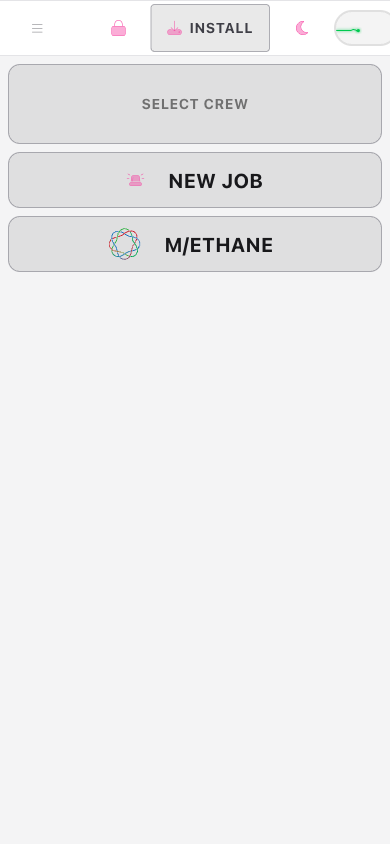
On the Jobs screen, you'll see the crew button in the header area. Its appearance depends on whether you have an active crew:
- No crew set — the button displays SELECT CREW
- Crew active — the button shows your callsign and vehicle (for example,
MS002 / MS)
Tap the button to open the Crew Picker drawer.

Step 2: Choose or Create Your Crew
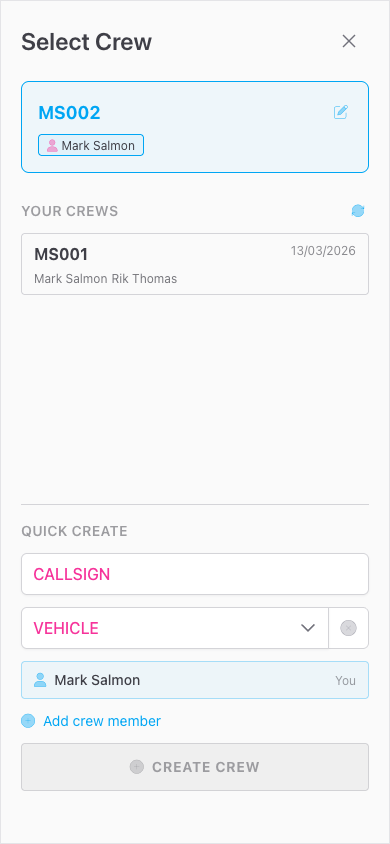
The Crew Picker drawer has three sections:
- Active Crew — your currently selected crew (if one is set), shown at the top with an Edit button
- Your Crews — other crews where you're listed as a member, filtered to ones that are currently valid for the shift
- Quick Create — fields to create a brand new crew from scratch
Switching to an Existing Crew
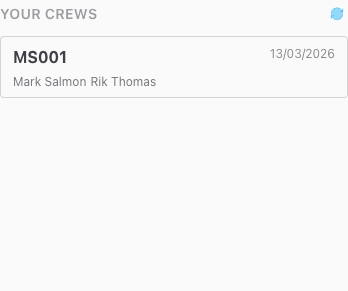
If the Your Crews section lists a crew you want to use, tap its card. The app switches to that crew immediately and closes the drawer.
Creating a New Crew
Only available when your team uses self-service crew management. If your team is control-room managed, the Quick Create section isn't shown — see Working in a Control-Room Managed Team.
Use the Quick Create section at the bottom of the drawer. Fill in the following fields:
- Callsign — your resource identifier, exactly as your team uses it (for example,
MED1orALPHA-2) - Vehicle — select from the dropdown list of vehicles registered to your team
- Event — optional; links your crew to a specific event
- Crew Members — add each person working with you; you are included by default
Tap Create Crew when you're done. The new crew is saved to your device, synced to the server (if you're online), and set as your active crew straight away.
New crews created while offline are saved locally and marked for sync. They'll upload automatically when your connection is restored.
Editing Your Active Crew
Only available when your team uses self-service crew management. In a control-room managed team, the Edit option isn't shown on your active crew — contact the control room if your details need correcting.
If your current crew details need updating — a crew member has changed, or you need to correct the callsign — you can edit directly from the Crew Picker.
- Open the Crew Picker drawer by tapping the crew button.
- In the Active Crew section at the top, tap Edit.
- The card expands inline, showing fields for Callsign, Vehicle, and Crew Members.
- Make your changes and save.
This updates the crew in place. It doesn't create a new crew.
Editing Crew Details Within a Job
When you're working on a specific job, you can update the crew information recorded against it — for example, if a crew member joins you on scene, or you need to correct a mistake.
Find the Crews section within the job. On your crew's row, tap Edit My Crew. A drawer opens with the same Callsign, Vehicle, and Crew Members fields as the Crew Picker, and a single Save.
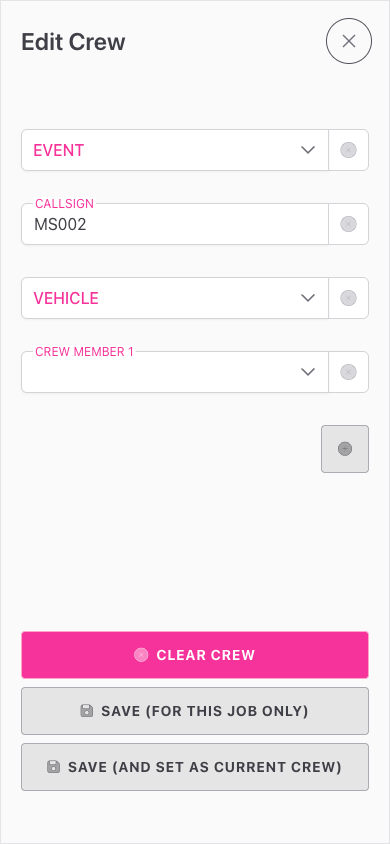
There is one save, and it edits the crew itself — so the change applies everywhere that crew appears, not just this job, and your active crew stays the same crew. Earlier versions offered a second option that copied the crew under a new identity for the job you were on; that was removed because it quietly split one crew into two and made shift-long records harder to follow.
Editing here changes the crew for everyone on it. If the composition has genuinely changed for the rest of the shift, that's exactly what you want. If someone is only helping on this one job, add their crew as a separate resource instead — see Adding Another Crew to a Job below.
Adding Another Crew to a Job
Available in every crew management mode. Even in a control-room managed team you can attach another crew to your own job — recording who attended is your job, not the control room's. What a managed team blocks is building crews: creating a new one, or changing an existing crew's callsign, vehicle, or members. See Working in a Control-Room Managed Team.
On jobs where multiple resources attend, you can add further crews from within the job itself.
- Open the job.
- Find the Crews section and tap Add Resource.
- The drawer lists available crew cards — crews currently active on your team that aren't already on this job. If the job belongs to a shift, only crews on that same shift are listed. Each card shows the callsign, vehicle, and member names. Tap a card to add that crew.
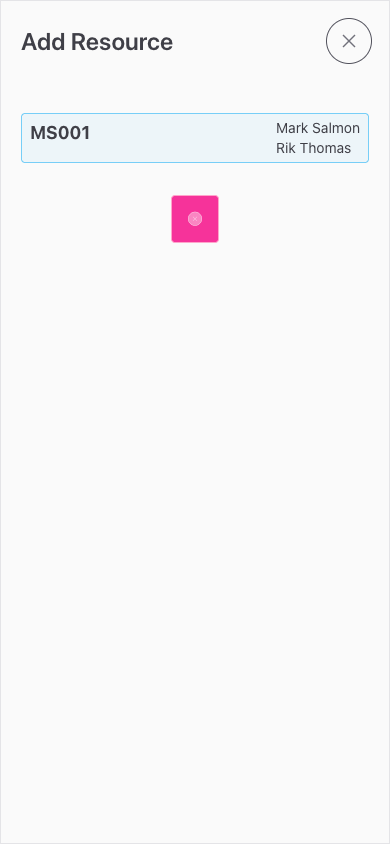
The drawer only lists crews that already exist. To bring in someone who isn't on a crew yet, they need to set their own crew up in the app first — or, on a control-room managed team, ask the control room to build one.
If a colleague's crew doesn't appear in the available list, they may not have set their crew up in the app yet, or their crew may have expired. Ask them to open the app and check their crew is active.
Tips and Best Practices
- Let the app detect your crew. If you're on a roster or worked the previous shift, the app will usually find you automatically — check the confirmation toast before setting anything up manually.
- Set up before your first job. Crew details are automatically attached to every new job you create, so a correct crew from the start saves editing later.
- Use your official callsign. Use whatever your control room or dispatcher uses, so records match up.
- Working offline? Your crew is saved on your device and attaches correctly to jobs. New crews created offline sync automatically when you're back online.
- Shift resets are by design. Freestyle crews expire after 13 hours so you always start a new shift with accurate data. Event crews stay active as long as the event runs.
Troubleshooting
The app imported the wrong crew automatically. Tap the crew button, find the correct crew in the Your Crews section, and tap it to switch. If the auto-imported crew appears but you haven't dismissed it yet, tap Undo in the notification toast to cancel the import.
No crew options appear in the Crew Choice dialog. Your team may not have any active crew rosters set up. Use Quick Create in the Crew Picker drawer to set up a crew manually.
I can't find my vehicle in the Vehicle dropdown. Vehicles are managed by your team administrator. If yours isn't listed, ask them to add it under team settings.
I can't find a colleague in the Crew Members list. Only users who are members of your team appear in the list. If your colleague isn't showing up, they may not yet have an account on your team — ask your administrator to invite them.
My crew was reset mid-shift. Freestyle crew details expire after 13 hours. If your shift spans that window, you'll need to set your crew again. Crews linked to an active event or shift won't expire in the same way.
The crew button still shows no details after I saved. Try refreshing the app. If the issue persists, tap Reset App from the navigation menu — but note that this clears all local data, so only do it as a last resort.
- Adding a Job — once your crew is set up, tap New Job to log your first job of the shift
- Managing Crews — how to create, edit, merge, and delete crews from the admin portal
- Setting up a new Event — events are created and managed by your team administrator
- Vehicles — vehicle lists are managed by your team administrator in team settings