 IndieBase

Table of Contents
Working in a Control-Room Managed Team
What changes in the app when your team switches to control-room managed crews, and what to do if you open the app without one.
Working in a Control-Room Managed Team
Some teams manage every crew centrally from the control room rather than letting people build their own — here's what that looks like from inside the app.
Overview
Most of this documentation assumes your team uses self-service crew management — you build your own crew, pick it from a list, or let the app detect it automatically. Some teams, particularly larger control-room-led operations, switch this off entirely. When that happens, crew creation and editing in the app disappears, and instead you wait to be allocated a crew by the control room.
This is a single, whole-team setting called Crew Management, set by a team administrator on the Event Config page. It applies to every job you do — event work and day-to-day standalone jobs alike — not just a single event.
You don't need to do anything to opt in or out of this — it's entirely down to how your team administrator has configured Crew Management. This page only applies to you if your team has switched it to Control-room managed.
Before You Start
- You must be signed in to the app.
- Whether any of this applies to you depends entirely on your team's Crew Management setting — ask your team administrator if you're not sure which mode your team uses.
- You still need a device connection at some point for a control-room allocation to reach you — but the waiting screen itself works fine offline, and retries automatically once you reconnect.
What Changes in a Control-Room Managed Team
With Crew Management set to Control-room managed, the crew-building tools you'd normally see in the app are no longer available to you:
- The Quick Create section in the Crew Picker drawer disappears.
- The Edit option on your active crew disappears.
- The Edit My Crew button on a job's Crews panel disappears.
In their place, you'll see a short message wherever one of these controls used to be:
"Crews for this event are managed by the control room. If your crew is missing or wrong, contact the control room."
This isn't a restriction placed on you personally — it applies to every team member without administrator access. Team administrators (and anyone else with crew management permission) still build and edit crews as normal, from the Home page, an event page, or the Control Room's Crew Builder — see Managing Crews and Creating Crews in an Event.
Selecting an existing crew still works exactly as before. It's only creating and editing that's switched off for regular team members.
What You Can Still Do on a Job
The Add Resource button on a job's Crews panel stays available in every mode, and so does the remove (bin) control beside each crew. If a second vehicle attends your job, you can still attach that crew yourself and take it off again if you pick the wrong one.
The distinction is between building a crew and resourcing a job. Attaching a crew that already exists doesn't change the crew — it just records who attended, which is your job to record. What you can't do is create a brand-new crew or change an existing crew's callsign, vehicle, or members.
The Add Resource drawer lists crews the control room has already built. If the crew you need isn't in the list, contact the control room to have it created — that part hasn't changed.
If You're Not Allocated to a Crew
If you open the app and no valid crew can be found for you — nothing was auto-detected and you have no way to build one yourself — you'll see a full-screen waiting state instead of the ordinary Jobs list.
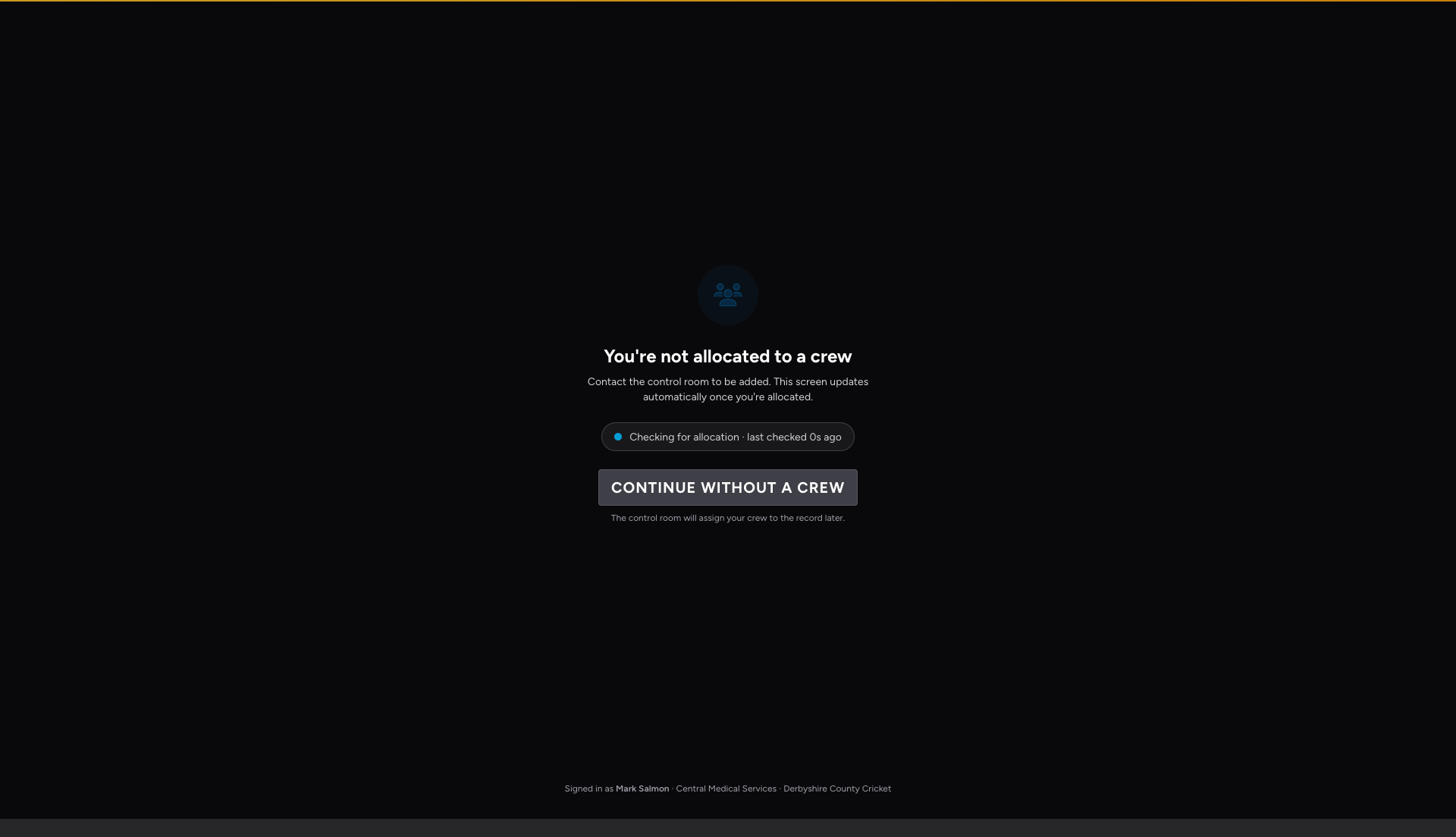
The screen shows:
- A heading: "You're not allocated to a crew"
- Supporting text: "Contact the control room to be added. This screen updates automatically once you're allocated."
- A status pill showing where things stand (see below)
- A Continue without a crew button
- An identity footer at the bottom, confirming who you're signed in as, your team, and (if there's exactly one live event) which event
Reading the Status Pill
The pill updates automatically as your situation changes — you never need to refresh or tap anything for it to update:
| State | What you see | What it means |
|---|---|---|
| Checking | A pulsing sky-blue dot: "Checking for allocation · last checked Ns ago" | The app is online and watching for your allocation, refreshed on the normal sync cycle |
| Offline | An amber dot: "Offline — will retry when reconnected" | Your device has no connection right now; checking resumes automatically once it's restored |
| Still waiting | The supporting text changes to "Still not allocated — check in with the control room again" | You've been waiting a few minutes with no allocation yet — a nudge to check in by radio or in person |
| Allocated | An emerald dot: "Allocated to {callsign} — opening…" | The control room has just added you to a crew |

Getting Allocated
There's nothing to tap when the control room adds you to a crew — the app picks it up on its own, usually within a minute or so, whether or not you're actively looking at the screen. When it does:
- The pill turns emerald and reads "Allocated to {callsign} — opening…"
- After a brief pause (so you actually see the confirmation), the waiting screen closes on its own.
- You land on the ordinary Jobs screen with your new crew already active — no restart, no manual refresh.
If you don't see this happen within a couple of minutes, check the status pill first — if it says Offline, that's why. Reconnect and the check resumes automatically.
Continuing Without a Crew
You are never blocked from doing your job just because you haven't been allocated a crew yet. If a patient needs attention right now, tap Continue without a crew on the waiting screen — or simply tap New Job or New Incident as normal; the app will offer you the same option.
This opens a short confirmation dialogue rather than creating the record immediately, since a job created this way has no crew to attach it to. See Adding a Job for exactly what that dialogue says and what happens to the record afterwards — in short, it's saved normally, works fully offline, and lands in the control room's Unassigned pool ready for a crew to be added retrospectively.
If you back out of that dialogue (Go back), you're returned straight to the waiting screen — you're never left looking at a blank Jobs list.
Getting Allocated While You're Already Working
If the control room allocates you to a crew while you already have a job or incident open — rather than while you're sitting on the waiting screen — nothing interrupts what you're doing. The crew import happens silently in the background.
Instead, a brief notification appears at the bottom of the screen:
"You've been allocated to {callsign}" — with an Add {callsign} to this record button.
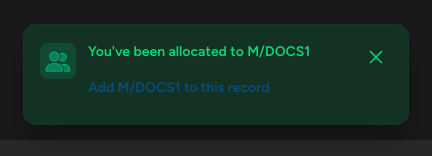
Tap the button if you want this record credited to your new crew. If you dismiss the notification or let it time out (after about 10 seconds) without tapping it, nothing happens — the record you were working on simply stays in the unassigned pool, exactly as if you'd never seen the notification. You (or the control room) can always add a crew to it later.
This one-tap action only ever attaches your own crew to your own record — it isn't a general-purpose crew assignment tool. It only appears on jobs, not incidents.
Tips and Best Practices
- Leave the waiting screen open if you can. It updates on its own — there's no need to close and reopen the app to check for an allocation.
- Use "Continue without a crew" the moment a patient needs you. Waiting for an allocation should never delay clinical care — the record is safe either way, and a crew can always be added afterwards.
- Check the status pill before assuming something's wrong. An "Offline" pill explains a missing allocation far more often than an actual control-room delay.
- Tap the allocation toast promptly if you want the credit on that record. It only stays available for a short time before it disappears — after that, the control room (or your own self-association from a fresh record) is the way to attach the crew retrospectively.
Troubleshooting
I can't find "New Crew" or "Edit Crew" anywhere in the app. Your team is using Control-room managed crews. Ask your team administrator to add you to a crew, or contact the control room directly if one is running.
I've been waiting a long time and nothing has changed. Check the status pill first. If it reads "Offline", reconnect your device — checking resumes automatically. If it reads "Checking" and it's been more than a few minutes, contact the control room directly; the supporting text will also prompt you to check in again once you've been waiting a while.
The waiting screen closed but I ended up on the wrong crew. The app always shows exactly the crew the control room allocated you to. If it's wrong, contact the control room to have it corrected — this isn't something you can change yourself while your team is control-room managed.
I tapped "Continue without a crew" but changed my mind. Tap Go back in the confirmation dialogue instead of continuing — you'll be returned to the waiting screen with nothing created.
The allocation toast disappeared before I could tap it. The record you were working on is still safe — it's simply sitting in the unassigned pool. The control room can add a crew to it retrospectively, with no loss of any clinical data you've entered.
- Event Config — where a team administrator switches Crew Management between Self-service and Control-room managed
- Setting Up Your Crew — the self-service crew workflow this page replaces while Control-room managed is switched on
- Adding a Job — including creating a job without a crew
- Managing Crews — how administrators build and edit crews from the admin portal
- Assigning Crews to a Job — how the control room finds and assigns crews to unassigned jobs